


Captions AI: Videos Subtitles
4.6291.00 Reviews
App Specs
- Version
- 3.8.4
- Updated On
- License
- Free
- Downloads
- 1,000,000+
- Developer
- Pixster Studio
- Categories
- Video Players & Editors
- Platform
- Android
Screenshots
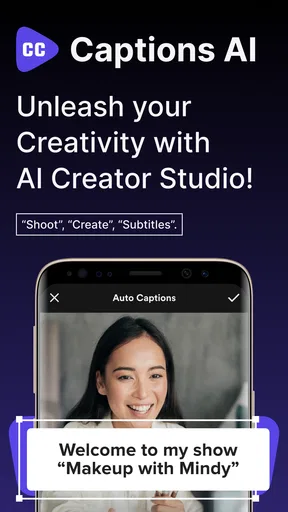
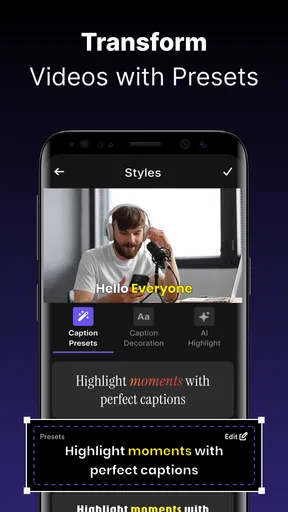
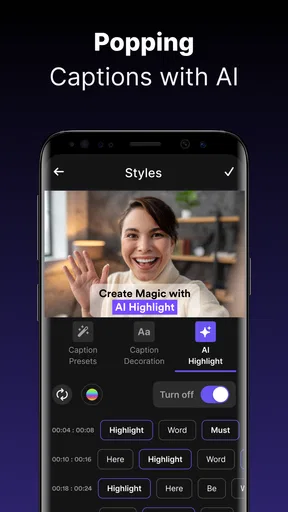
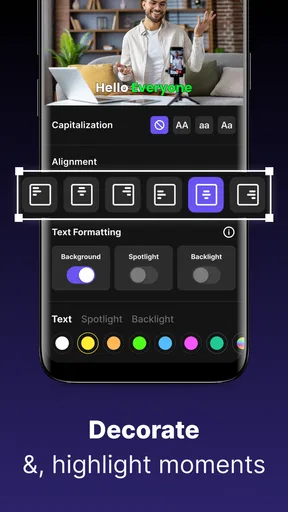
 Analysis by AppCompare
I see Captions AI as a practical shortcut for people who make videos and want help with the words around them, not as a complete replacement for a video editor. Its focus is unusually clear: it brings AI captioning together with subtitle work, hashtag ideas, and a teleprompter aimed at social posting. That combination can make a small creator’s routine easier, although the results still need a human eye before they go public.
That distinction matters. Auto-generated text can save the slow first pass of typing, but it can also mishear a name, flatten a joke, or miss where one thought ends and another begins. I would use the app to get a draft and speed up preparation, then check the output rather than assuming the AI has understood every word. It is most useful as an assistant in a creator workflow, not as an automatic quality guarantee.
A focused toolkit for short-form video work
Captions AI is a free video player and editing app from Pixster Studio, with optional in-app purchases. It has a 4.4 average from around 63,000 ratings and more than a million installs, so it has clearly found an audience among people who need video text tools. The app is rated for Everyone, and version 3.1 supports devices running Android 8.0 or later. Those basics make it approachable, but the more important question is whether its particular mix of tools fits the way you make videos.
The pairing of captions and a teleprompter is a sensible idea. You can think through what you want to say before recording, then turn the finished speech into text for viewers who watch with the sound off or need subtitles. Hashtag suggestions can help with the final publishing checklist. None of these tools guarantees a stronger video or wider reach, but keeping them together may reduce the number of separate steps between planning and posting.
Where AI saves time—and where it needs supervision
Automatic captioning is most valuable when the alternative is leaving a video without text because manual transcription feels like too much work. For a clear, direct-to-camera clip, a generated draft can give you a useful starting point. The time saved is less certain when the recording has overlapping voices, background noise, technical vocabulary, or a speaker who changes direction mid-sentence. Those are exactly the cases where a quick proofread can turn into careful editing.
My practical advice is to review captions in context, not just as a block of text. Watch the video while checking the words, especially names, numbers, short terms that sound alike, and the moment a new speaker begins. Then consider whether the line breaks are easy to read on a phone. Even accurate wording can be awkward if it appears in long chunks or covers an important part of the picture. Treating those checks as part of editing gives you more dependable results than posting the first output untouched.
A realistic creator routine
Imagine recording a quick product tip between errands. You can prepare a few talking points with the teleprompter, record while the idea is fresh, and use the captioning tools to create a first text pass. Before sharing, you can correct any misheard product terms, trim captions that linger too long, and decide whether suggested hashtags actually describe the clip. That is a more useful role for AI than asking it to make every creative decision: it handles repetitive preparation while you keep control of the message.
Worth Reading Before You Choose

EA SPORTS FC Mobile 26 Is a Bigger Football Game, but It Takes Time

Flipboard Shows What News Apps Must Do Beyond the Feed

Switching to Android Auto Means Rethinking Your Driving Routine

Google Calendar Makes a Crowded Week Easier to Manage

Ludo King Makes the Most of the Minutes Between Plans

Baby Panda World Brings Quick Play to Modern Phones, but Its Game Library Feels Busy
For a small creator who posts regularly, this kind of workflow can be worthwhile even when no single feature feels essential. The gain comes from having planning, captioning, and publishing aids close together. If you only make an occasional video, the setup may not save enough effort to justify learning another app; a built-in caption option or a basic editor you already know could be simpler. The best choice depends less on how many tools sound appealing and more on whether you will use them repeatedly.
Getting Started with Captions AI
First off, downloading and setting up the app is a breeze. Whether you're on Android or iOS, Captions AI: Videos Subtitles is available on both platforms, making it super accessible. Once installed, the interface is clean and intuitive. I didn’t have to scramble around figuring out what button did what. Everything is laid out in a user-friendly manner, which is always a win in my book.
Features that Stand Out
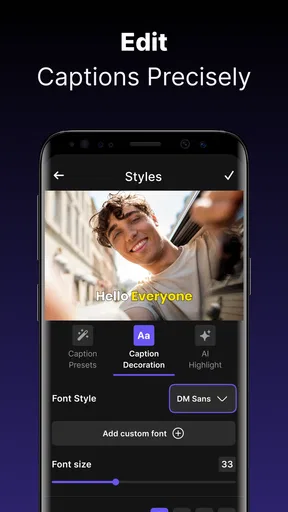
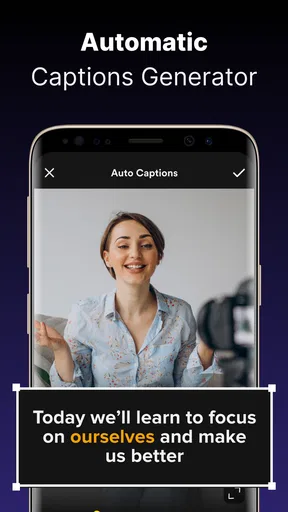
Now, let’s talk features. The app uses AI to generate subtitles for your videos. It’s surprisingly accurate, picking up on nuances and slangs that many other apps might miss. You can customize these subtitles, which is a game-changer if you’re someone who likes things just so. The editing features are robust, allowing you to tweak timing, style, and even font size. It's like having a mini editing studio.
One of the coolest features is the translation capability. Imagine you’re watching a foreign film and want subtitles in your native language. Boom! Captions AI has got you covered. The translations are generally spot-on, though there might be the occasional hiccup with idiomatic expressions. But hey, that’s AI for you – always learning!
Performance and Usability
In terms of performance, the app runs smoothly. I tested it on a few video formats, and it handled them all without a hitch. There’s no noticeable lag, and the AI processes are quick, meaning you won’t be left hanging for ages waiting for your subtitles to generate. The app also doesn’t hog your device’s resources, which is a plus if you’re multitasking.
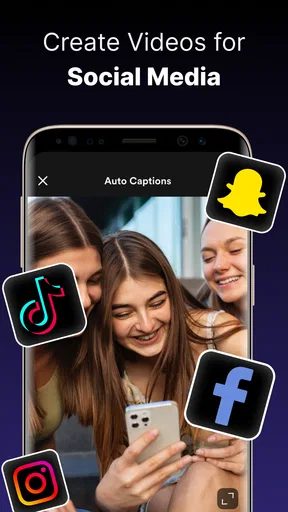
Usability-wise, the app is great for both casual users and professionals. Whether you’re adding subtitles to a quick social media post or working on a more elaborate video project, Captions AI adapts to your needs. The app doesn’t bombard you with ads, which is a relief, and the premium features are reasonably priced, offering good value for the investment.
Who is it For?
If you’re a content creator, this app could be your new best friend. It saves time and effort, letting you focus more on the creative aspects of your projects. But it’s not just for the pros. Even if you're just someone who enjoys watching videos in different languages, or wants to add a little flair to personal videos, Captions AI steps up to the plate.
With the rise of video content across platforms, having quality subtitles can make a huge difference in viewer engagement. Captions AI helps bridge the gap between content and audience, making videos more accessible and enjoyable for everyone.
What to consider before choosing it
The app is free to download, but some features are offered through in-app purchases priced from $4.99 to $49.99 per item. I’d start with the free experience and only consider paying after identifying a repeated task that the paid option genuinely improves. A one-off video rarely justifies buying a broader toolkit; regular posting makes the calculation different. Before committing, check what a purchase unlocks and whether it matches the specific part of your workflow you want to improve.
It is also worth separating captioning from translation. A transcript aims to capture what was said; translated subtitles ask the app to carry the meaning into another language. That second step is especially vulnerable to context: a name, pun, or phrase that makes sense in one language may need a human rewrite rather than a literal conversion. For an informal clip, a rough translation may be enough. For instructions, sensitive topics, or a message where wording matters, I would have a fluent speaker review it.
When another tool is the better fit
Compared with a basic editor’s built-in captions, Captions AI is appealing when you want a more dedicated set of tools for spoken video and social preparation. The trade-off is another app to learn and another place to finish your work. If your current editor already gives you accurate captions, readable styling, and the export you need, switching may add friction without improving the final video. If you mainly want to cut clips, add transitions, balance audio, or build a detailed timeline, a full video editor is the more appropriate centre of your workflow.
Likewise, someone who only needs a transcript for a meeting or a long interview may prefer a transcription-focused tool that makes reviewing and exporting text its main job. Captions AI makes more sense when the text is meant to accompany a video or support the process of making one. The practical test is simple: if captions, a speaking prompt, and help preparing a social post are recurring needs, the bundle has a purpose; if not, individual tools you already use may be enough.
Small checks that make the output more useful
For better results, I would record with the microphone close enough to make speech easy to distinguish, pause briefly between separate ideas, and avoid reading a script so quickly that the captions become difficult to follow. These are not magic settings; they are ways to give an automated tool cleaner material to work with. After generating text, check proper names and any phrase that could change the meaning if one word is wrong. Then watch once more with the sound muted: that reveals whether the captions stand on their own and whether their placement competes with the video.
For a teleprompter, I would write in short spoken phrases rather than paste in dense paragraphs. That makes it easier to keep a natural rhythm and look up between thoughts. Hashtag suggestions are best treated as prompts, too: keep only the ones that accurately describe the clip and fit the audience you are trying to reach. This small editorial pass protects your voice from becoming generic, even when AI helps with the groundwork.
Final Thoughts
All in all, Captions AI: Videos Subtitles is an impressive tool in the world of video editing apps. It’s reliable, easy to use, and packed with features that cater to a wide audience. Whether you're a veteran video editor or someone just dipping their toes into the world of video content, this app is definitely worth a look. Give it a spin, and you might just find it becomes a staple in your digital toolkit!
My recommendation is narrower than that closing enthusiasm: give it a try if you regularly record spoken clips and want captioning plus planning aids in one place. I would skip it if you need a comprehensive editor, demand publication-ready translations without review, or already have a fast routine in another app. For creators who fit its focus, the strongest benefit is not that AI does the creative work, but that it can make the repetitive first steps easier to start and easier to finish.
Pros
- Easy-to-use interface simplifies editing.
- Supports multiple languages for subtitles.
- Quick rendering with minimal lag.
- Customization options for text style.
- Integrates with major social platforms.
Cons
- Limited free version features.
- Occasional subtitle sync issues.
- Requires internet for full functionality.
- Ads can be intrusive in free version.
- No advanced video editing tools.
FAQs for Captions AI: Videos Subtitles
What is Captions AI: Videos Subtitles and what are its main features?
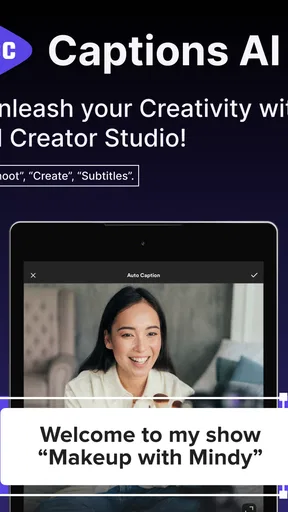
Captions AI: Videos Subtitles is an app designed to help users add subtitles to their videos efficiently. It uses advanced AI technology to automatically generate subtitles, which can be customized in terms of font, color, and style. The app supports multiple languages and offers real-time editing features, making it suitable for content creators who want to enhance their video accessibility and engagement.
Is Captions AI: Videos Subtitles available for both Android and iOS devices?
Yes, Captions AI: Videos Subtitles is available for both Android and iOS devices. You can download it from the Google Play Store for Android devices and the Apple App Store for iOS devices. The app is compatible with a wide range of devices, ensuring that users can add subtitles to their videos regardless of their smartphone model.
Does Captions AI: Videos Subtitles offer a free version or a trial period?
Captions AI: Videos Subtitles offers a free version with basic features to get you started. However, for more advanced features like unlimited subtitle generation and premium customization options, a paid version is available. Some users may also find trial periods offered during special promotions, which can allow them to explore premium features before committing to a subscription.
How accurate is the AI-generated subtitle feature in Captions AI: Videos Subtitles?
The AI subtitle generation in Captions AI: Videos Subtitles is highly accurate, thanks to its sophisticated algorithms. However, the accuracy may vary depending on the audio clarity and background noise in the video. Users are encouraged to review and edit the generated subtitles to ensure they meet their quality standards, especially for videos with heavy accents or technical jargon.
Can I edit and customize subtitles after they are generated by Captions AI: Videos Subtitles?
Yes, you can easily edit and customize subtitles after they are generated by the app. Captions AI: Videos Subtitles provides a user-friendly editing interface where you can adjust text, change fonts, colors, and timing to better fit your video’s style and pacing. This flexibility allows users to create professional-looking subtitles that align with their brand or personal preference.


